Tuesday, October 14, 2008

How to convert protected WMA to MP3 for iPod

"The majority of my albums are in my Windows Media Player and I would like to transfer those albums to my iPod. Now I don't know how to. All I know is that WMA is not compatible with Apple iPod. So how do I rescue my songs? I tried to use limewire to download free music but it is a mess."
If you meet the same problem, you got the right place! The following tutorial details how to put both protected and unprotected WMA (Windows Media Audio) music files to iPod.

If the WMA files you are going to play on your iPod is unprotected, you just select and drag them into iTunes Library and they should be automatically converted to whatever iPod format you selected in iTunes preferences for importing.

If they are WMA files protected by DRM, it is not that easy. You need to use some software to strip the DRM off your WMA files and then convert the WMA files to the much more widely-supported MP3 format.
Note: As with any transcoding, the quality will go down. But if you've got a lot of protected WMA files you'd like to get on your iPod, this solution would do the trick.

In this tutorial, I'd like to show how to remove DRM from WMA files and convert the WMA files to MP3 format using TuneClone Audio Converter. Let’s take a look at how it performs:

1. Settings at TuneClone
Convert WMA to iPod with TuneClone

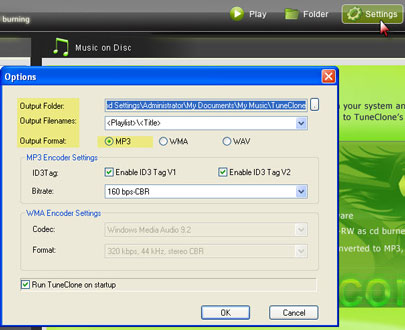
Download TuneClone (fully compatible with Windows XP and Windows Vista) and install it. After launching TuneClone, click the Settings button. In the pop-up dialog of Options, you can specify the Output Folder, Output Filenames, Output Format (here we choose MP3), etc. for the output files.
Tip: You can get the output protection removed MP3 music folder by clicking the Folder button after the whole process.

2. Burning at Windows Media Player(WMP 11)

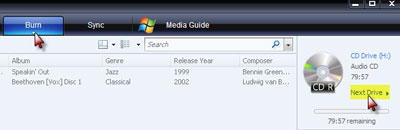
Create a new playlist and drag into it the WMA files you are going to enjoy on your iPod. After that, click the Burn button and select Audio CD from the drop-down list. On the right panel of CD Drive, click Next Drive to locate the CD drive to TuneClone's Virtual CD Burner.
Convert WMA to MP3 for Apple iPod

Note: If you are unsure whether TuneClone's Virtual CD burner is successfully installed or where it is installed, please refer to the bottom left corner of TuneClone:
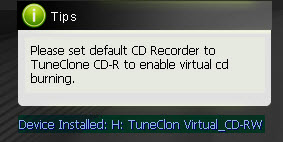
Convert WMA to MP3 for iPod nano, iPod touch, iPod classic

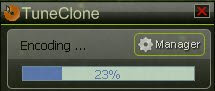
Then, drag the playlist you created just now to the Burn List and click the Start Burn button to start burning the playlist. While the burning gets started, TuneClone will automatically convert the WMA playlist to MP3 files. You can open the manager screen to show all the converted music files.
Note: If you get the output files formatted as 01-1.mp3, 01-2.mp3, etc., please click the output MP3 songs in the manager screen and drag the counterpart original WMA songs to the Track Info panel of TuneClone one by one. The information about the artist, album, title, etc. will be changed accordingly. It would be a time-consuming process if you are burning a big collection of music. However, since Windows Media Player 11 doesn't support CD-text burning, this seems to be the only way to get the information back.
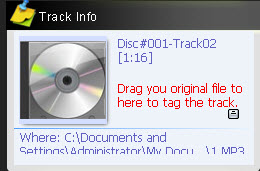
WMA to iPod touch, iPod nano, iPod classic

After you get the output MP3 files converted from the WMA playlist in your Windows Media Player, you can now begin to transfer the MP3 files to your iPod with the sync of iTunes.

Friday, September 26, 2008

How to Convert iTunes 8 M4P to MP3

More than two months ago, I wrote a tutorial entitled How to Convert iTunes M4P to MP3. In that post, I introduced the way to convert iTunes M4P (protected AAC) music to MP3: using TuneClone. With the release of Apple genius iTunes 8, this way of converting iTunes M4P (protected AAC) music to MP3 with TuneClone isn't applicable, as there's some difference between iTunes 8 and its previous version. So, I'd like to post the step by step tutorial about how to convert iTunes 8 protected AAC or say M4P music to MP3 with TuneClone below:

1. Download TuneClone from http://www.tuneclone.com/tuneclone_setup.exe and install it.

TuneClone is fully compatible with Windows XP and Windows Vista. A virtual CD burner will be installed. This virtual CD-RW will be used to convert music files.

2. Make settings in TuneClone

Convert M4P to MP3

Click the "Settings" button at TuneClone. In the pop-up window, you can specify the "output folder", "output filenames", "output format", etc. for the output files.

Note: Apart from MP3, TuneClone also allows you to convert iTunes M4P to WAV and unprotected WMA.
Tip: You can get the output protection removed music folder by clicking the "Folder" button after the whole process.

3. Make settings at iTunes

Create a playlist, and then add the files you want to convert into the playlist.

convert iTunes to MP3

After you have created the playlist ready to be burnt, click the "Burn Disc" in the bottom right of iTunes.

In the pop up window of "Burn Settings", make the settings as highlighted below:

convert M4P to MP3

4. Start to burn

Click the "Burn" button to start burning.

After the burning gets started, TuneClone will automatically convert the music file to MP3, WMA or WAV. You can open the manager screen to show all the converted music files.

M4P converter

The most important step is to choose the CD burner. Then the software can convert the music files automatically. It is exceedingly easy when you want to batch convert lots of files.

Thursday, September 11, 2008

Remove iTunes DRM on Windows & Mac

There are many ways to remove DRM protection from iTunes music. On Windows OS, you can remove the DRM from iTunes music using the burn-and-rip method or you can turn to programs like TuneClone and DoubleTwist. On Mac OS X, iMovie is the perfect solution to removing DRM from iTunes music. Besides, freewares like FairGame is also a pretty good choice. So this article is dedicated to introducing several methods of removing the nasty DRM from iTunes music on Windows and Mac OS X. It is divided into the following four parts:

Part 1. Remove DRM from iTunes music on Windows with burn-and-rip method
Part 2. Remove DRM from iTunes music on Windows with TuneClone
Part 3. Remove DRM from iTunes music on Mac OS X with iMovie
Part 4. Remove DRM from iTunes music on Mac OS X with FairGame


Part 1. Remove DRM from iTunes music on Windows with burn-and-rip method

A. Insert a CD-R or CD-RW disc into your CD-ROM drive. You'd better use CD-RW disc as it can be used for more than once.
B. Burn your playlist to make an audio CD. You cannot select the "MP3 CD" option since it requires the protected music files be converted to unprotected MP3 files.
C. After the audio CD is successfully burned, insert the disc into your CD-ROM drive again. Then you can use iTunes or Windows Media Player to import the music tracks on the burned disc to MP3 files.

Part 2. Remove DRM from iTunes music on Windows with TuneClone

A. Download TuneClone from http://www.tuneclone.com/ and install it.

TuneClone is fully compatible with Windows XP and Windows Vista. A virtual CD burner will be installed. This virtual CD-RW will be used to convert music files.

B. Set the default CD burner to TuneClone virtual CD-RW at iTunes.

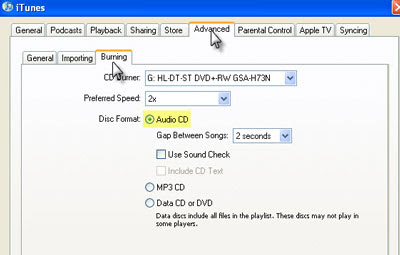
Click menu "Edit", select menu item "Preferences...", and then select "Advanced Tab". In order to keep the music information about artist, title, etc., the "Include CD Text" option should be checked.
Note: If you are using iTunes 8.0 or above, please skip to this guide about how to remove DRM from iTunes 8 music.

Remove iTunes DRM with TuneClone

C. Create a playlist, and then add the files you want to convert into the playlist.

D. Click "Burn Disc" button at the bottom right of the main screen of iTunes.

While the burning gets started, TuneClone will automatically convert the music file to MP3, WMA or WAV. You can open the manager screen to show all the converted music files.

The most important step is to choose the cd burner. Then the software can convert the music files automatically. It is exceedingly easy when you want to batch convert lots of files.

Part 3. Remove DRM from iTunes music on Mac OS X with iMovie

remove iTunes DRM on Mac with iMovie

In the iMovie window, select the 'Media' tab located between 'Themes' and 'Editing'. You will notice that the top right portion of the interface now offers a media browser. Select the 'Audio' tab and locate the playlist which contains purchased music, or search by artist/title.

remove iTunes DRM with imovie

remove iTunes DRM on Mac OS X with iMovie

Select the DRM-laden song and drag the file from the media browser into the iMovie timeline where it says "Drag audio here to build your project."

remove DRM from iTunes on Mac with iMovie

In order to export the song, iMovie requires that a visual image be associated with the audio track - iMovie thinks that it is going to be exporting a movie. Simply drag a blank image (or any other image) to the track above the previously imported audio file. Once iMovie has processed the image, select the 'Share…' sub menu item from found inside 'Share' in iMovie's menu bar.

remove iTunes DRM on Mac OS X with iMovie

Ensure that 'Expert Settings' is selected in the "Compress movie for:" drop-down menu. Selecting 'Expert Settings' mode will provide the options to export the file as an audio file. Select the 'Share' button.

In the Save as… dialogue, select "Sound to AIFF" in the Export drop-down menu, Choose an appropriate directory for iMovie to export to, title the file, and select 'Save'. Depending on your machine configuration, iMovie will compress and export the movie project as an audio file in 15-40 seconds.

remove iTunes DRM on Mac with iMovie

Locate the exported AIFF audio file and drag to your iTunes Library. Right-click on the file and select "Convert Selection to AAC". Once completed, 'Get Info' on the new file, edit meta data, add album art, and trash the originally purchased and AIFF audio files from your iTunes library.

Part 4. Remove DRM from iTunes music on Mac OS X with FairGame

FairGame is freeware to remove DRM protection from iTunes music on Mac OS X. It will convert the DRMed songs you bought on the iTunes Store to an unprotected format (using iTunes default encoder) and keep all the original metadata, lyrics and artwork. FairGame doesn't do lossless DRM stripping. It re-encodes protected AAC files purchased in iTMS into unprotected AAC file using Apple's iMovie software.

Remove iTunes DRM on Mac with FairGame

What you MUST DO (only once) to get FairGame to work:

  • Enable "Access for assistive devices" in the "Universal Access" system preference

  • Select "Place clip in Movie Timeline" in the "Import" preference of iMovie HD


Then you can simply:

  • Select some songs in iTunes

  • Click on the "Process songs" button


Don't touch anything and wait until it's done...(FairGame is scripting iMovie's interface to process the songs, don't interfere)

Sunday, September 07, 2008

TuneClone V1.20 Free Download

TuneClone V1.20 was released on September 3, 2008!

Free download TuneClone V1.20

TuneClone V1.20 is a powerful DRM cracker and music converter for unlocking iTunes DRMed M4P music and protected WMA music and converting M4P, M4A, M4B, WMA to MP3, WAV and unprotected WMA.

TuneClone V1.20 allows you to remove DRM protection from purchased music files by applying the virtual CD burning technology. It strips the DRM from protected iTunes M4P or protected WMA so as to help you enjoy DRM-laden music on media players or MP3 players like Microsoft Zune, Sony PSP, BlackBerry, Creative Zen, iriver, SanDisk Sansa, Sony Walkman, Cell Phone (Sony Ericsson, Motorola, Nokia N-series, Samsung Anycall, LG, etc.) Pocket PC, PDA and so on.

TuneClone V1.20 also lets you virtually burn music files with media player software like iTunes, Windows Media Player, RealPlayer, WinAMP, Rhapsody, Napster, etc.

Key features of TuneClone V1.20: http://www.tuneclone.com/

1. TuneClone V1.20 is easy to install and easy to use via a simple user interface.

2. TuneClone V1.20 converts DRM protected music to MP3, WAV and unprotected WMA at very high speed with very nice CD quality.

3. TuneClone V1.20 easily and quickly removes DRM from purchased music files by applying the virtual CD burning technology. Compared with using real CD-R or CD-RW disc, the virtual CD burning uses the maximum writing speed so that your music files can be converted at a very high speed.

4. TuneClone V1.20 supports converting protected music for playback on all kinds of music players like Zune, PSP, BlackBerry, Creative Zen, iriver, Walkman, etc.

5. TuneClone V1.20 enables you to virtually burn music files with iTunes, Windows Media Player, RealPlayer, WinAMP, Rhapsody, Napster, etc.

6. TuneClone V1.20 is specially designed for batch converting large song collections.

7. TuneClone V1.20 well preserves ID3 tags for artist, album, title names, artworks, etc.

8. With TuneClone V1.20, the converted songs will have no DRM restriction any more.

Availability

More information about TuneClone V1.20 is available at http://www.tuneclone.com. You can free download TuneClone V1.20 via http://www.tuneclone.com/tuneclone_setup.exe for a try. The full version of TuneClone V1.20 costs USD 34.95. If you have questions about or show interest in TuneClone V1.20, please feel free to contact its support team via support@tuneclone.com

Monday, September 01, 2008

How to Transfer iTunes M4P to BlackBerry Storm

One of the great new features I am starting to enjoy on my BlackBerry Storm is the ability for it to play multimedia files and specifically audio (music).

And below are the formats supported by BlackBerry Storm:

Video format support: MPEG4 H.263, MPEG4 Part 2 Simple Profile, H.264, WMV
Audio format support: MP3, AAC, AAC+, eAAC+, WMA, WMA ProPlus

However, I bet there are not a few people who'd like to enjoy music songs from iTunes on their BlackBerry Storm. What frustrates them most is the fact that the iTunes tracks they purchased or downloaded from iTunes Store are in a "protected" AAC or M4P audio format and they are unable to play them beyond iTunes environment. The DRM-ed iTunes music songs are not recognized by BlackBerry Storm at all.

Don't give up, anyway! The posts I previously wrote How to convert iTunes M4P to MP3 with TuneClone and How to Convert iTunes M4P to MP3 are right there helping you to get rid of the headache. You can choose either the burn-and-rip method or that of using TuneClone Audio Converter elaborated in the posts.

After you get the output MP3 files (actually you can also output M4P to WAV), you can now begin to transfer them to your BlackBerry Storm:

1. Connect your Blackberry to you computer via the USB cable.
2. If you have properly enabled your Blackberry as a Mass Storage Device, your Blackberry's microSD card will show as a removable drive on your computer. For this guide, it happens to be on "Removable Disk" G:. Double-Click.
3. Double-click on the Blackberry folder
4. Double-click on the music folder
5. The folder should be empty.
6. Copy your music files to your Blackberry. Depending on the size, transfer time may vary.
7. Disconnect your Blackberry from the USB cable and go to the Multimedia icon on you Blackberry. You need to disconnect when you use the Mass Storage device method as it disables direct access from the Blackberry when connected to the PC via the USB cable.
8. Click on the Music icon.
9. Click on the Media Card folder
10. Select your Music folder
11. Select your Song
12. Play your music and enjoy!

Done.

Monday, August 18, 2008

How to transfer iTunes M4P to PSP

It is no doubt PSP is a great game player. But it is also a very good entertainment device which can be used for playing music. Assume you have some songs on your iTunes and are trying to figure out how to put them on your PSP. You copy and paste them in the PSP music folder, however, the PSP doesn't recognize the songs as music at all. So what's wrong? Don't worry! This guide will help you out of the trouble.

The music downloaded from iTunes is under DRM protection. In order to play it on your PSP, you need to strip the DRM off and have the iTunes M4P M4A converted to PSP MP3 format. You can burn the protected M4P music files to CD-R or CD-RW disc to make an audio CD and then use some CD ripper software to convert the audio CD track back to PSP MP3. Also iTunes allows you to burn the protected music files to CD-R or CD-RW disc to make a standard audio CD:

1. Insert a CD-R or CD-RW disc into your CD-ROM drive. You'd better use CD-RW disc as it can be used for more than once.
2. Create a new playlist in iTunes. Add the protected songs to your playlist until you have 72 minutes of music. Click Edit and select Preferences. Select the Advanced tab. Tick the Audio CD option on the Burning tab. Click the Burn Disc button to make an audio CD.
Note: You cannot select the MP3 CD option since it requires the protected music files be converted to unprotected MP3 files.
3. After the audio CD is successfully burned, insert the disc into your CD-ROM drive again. Then you can use iTunes or Windows Media Player to import the music tracks on the burned disc to MP3 files.

Convert iTunes to PSP

Sounds a good idea! But it would be a time consuming process if you have a library of iTunes M4P music files ready to be converted to PSP MP3 for playback on your PSP. And it is a waste of CD discs. Moreover, the information about the M4P music files like title, artist and album will be lost after burning and ripping back to MP3 or WMA files. So this method is not recommended if you have a big collection of iTunes M4P music files ready to be transferred to your PSP.

Here, I would recommend using TuneClone M4P to MP3 Converter to convert iTunes M4P to PSP MP3. It applys the virtual CD burning technology to simulates the burning and ripping process. You just need to burn the iTunes M4P playlist to TuneClone virtual CD burner. Then TuneClone will directly convert the iTunes M4P music list to PSP MP3 for you. It is very fast and the information about each music song will be preserved perfectly. You can follow its the step by step tutorial to learn how to convert iTunes DRM protected M4P music to MP3 for PSP.

Convert iTunes M4P to MP3 for PSP

After getting the output MP3 files by adopting either the burn-and-rip method or the way of using TuneClone M4P to MP3 Converter, now you can begin to transfer the MP3 files to your PSP:

1) Connect the PSP to your PC with a USB cable.
2) Press the "home" button on the PSP (it's a tiny button to the lower left of the screen) then use the left-right directional buttons to find "Settings", then the up-down buttons to find "USB Connection" on the PSP.
3) Press the "X" button (you got it, the round button with the "X" on it) and your PSP should display "USB Connection".
4) In a moment or two your computer should tell you that a new USB device has been connected, then show you a new generic hard drive, usually E: or F:
5) Click on the drive letter that corresponds to the PSP unit.
6) Now create a new folder on that drive and name it "psp".
7) Within the new "psp" folder create another folder, and name it "music".
8) Copy your desired mp3 files into the new "music" folder.
9) When you're done copying your desired music tracks, press the "O" button on the PSP to get out of USB connect mode.

Now you're ready to go! Use the left-right arrows to move to the music area, then the up-down arrows to find "Memory Stick". Choose that folder by pressing the "X" button again, and you should be able to find all your favorite music!

Tuesday, August 12, 2008

How to burn WinAMP music to MP3 with TuneClone

TuneClone is a unique audio converter application. Compared with other audio converters, TuneClone converts music files via a virtual CD drive. All you need to do is burn your playlist to TuneClone's virtual CD drive by using your media player programs, such as iTunes, Windows Media Player, RealPlayer, WinAMP, etc. The key step to use TuneClone is to select TuneClone's virtual CD-RW drive as CD burner. Your music files will be automatically converted during the burning and encoding process.

Below are the detailed tutorial about how to burn WinAMPmusic to TuneClone's virtual CD drive:

1. Download TuneClone from http://www.tuneclone.com/index.php and install it.

TuneClone is fully compatible with Windows XP and Windows Vista. A virtual CD drive will be installed. This virtual CD-RW will be used to convert music files.

2. Set Burn option at WinAMP.

Launch WinAMP. From the items below "Media Library" button, select TuneClone's Virtual CD burner.

burn WinAMP music to MP3 with TuneClone

3. Add files to the burn list.

After you correctly select the TuneClone's virtual CD driver as CD burner, click the "Add" button to add music files, folder or the current playlist to the burn list.

burn WinAMP music to MP3 with TuneClone

4. Start burning.

Click the "Burn" button to start burning the music files.

burn WinAMP music to MP3 with TuneClone

After the burning gets started, TuneClone will automatically convert the music file to MP3. You can open the manager screen to show all the converted music files.

burn WinAMP music to MP3 with TuneClone

The most important step is to choose the CD burner. Then the software can convert the music files automatically. It is exceedingly easy when you want to batch convert lots of files.