Tuesday, August 12, 2008

How to burn WinAMP music to MP3 with TuneClone

TuneClone is a unique audio converter application. Compared with other audio converters, TuneClone converts music files via a virtual CD drive. All you need to do is burn your playlist to TuneClone's virtual CD drive by using your media player programs, such as iTunes, Windows Media Player, RealPlayer, WinAMP, etc. The key step to use TuneClone is to select TuneClone's virtual CD-RW drive as CD burner. Your music files will be automatically converted during the burning and encoding process.

Below are the detailed tutorial about how to burn WinAMPmusic to TuneClone's virtual CD drive:

1. Download TuneClone from http://www.tuneclone.com/index.php and install it.

TuneClone is fully compatible with Windows XP and Windows Vista. A virtual CD drive will be installed. This virtual CD-RW will be used to convert music files.

2. Set Burn option at WinAMP.

Launch WinAMP. From the items below "Media Library" button, select TuneClone's Virtual CD burner.

burn WinAMP music to MP3 with TuneClone

3. Add files to the burn list.

After you correctly select the TuneClone's virtual CD driver as CD burner, click the "Add" button to add music files, folder or the current playlist to the burn list.

burn WinAMP music to MP3 with TuneClone

4. Start burning.

Click the "Burn" button to start burning the music files.

burn WinAMP music to MP3 with TuneClone

After the burning gets started, TuneClone will automatically convert the music file to MP3. You can open the manager screen to show all the converted music files.

burn WinAMP music to MP3 with TuneClone

The most important step is to choose the CD burner. Then the software can convert the music files automatically. It is exceedingly easy when you want to batch convert lots of files.

Sunday, August 10, 2008

How to Convert iTunes M4P to MP3 WMA WAV for Windows Movie Maker

Many people are fond of making slideshows on their Windows Movie Maker, however, it won't let them import any purchased music as it is DRM protected. Since iTunes store tops the music retailer in the world, the following tutorial focuses on how to convert purchased iTunes M4P music to MP3, WAV or unprotected WMA so as to import it to Windows Movie Maker project as background music. The tutorial is composed of the following three parts:

Part 1. Something about Windows Movie Maker

Windows Movie Maker is a totally free program that comes with Windows XP Home Edition, Windows XP Media Center Edition, Windows XP Professional, and Windows Vista. Below are the audio/video formats accepted by Windows Movie Maker:

Video files: .asf, .avi, .wmv
Movie files: MPEG1, .mpeg, .mpg, .mlv, .mp2
Audio files: .wav, .snd, .au, .aif, .aifc, .aiff
Windows media files: .asf, .wm, .wma, .wmv
MP3 format audio: .mp3

iTunes M4P to Windows Movie Maker

Part 2. Remove DRM from M4P music

The songs you purchased from iTunes store are under DRM protection. You cannot directly import them to your Windows Movie Maker project. However you can burn the protected music files to CD-R or CD-RW disc to make an audio CD and then use some CD ripper software to convert the audio CD track back to MP3, WAV, WMA, etc. And iTunes allows you to burn the protected music files to CD-R or CD-RW disc to make a standard audio CD:

1. Insert a CD-R or CD-RW disc into your CD-ROM drive. You'd better use CD-RW disc as it can be used for more than once.
2. Burn your playlist to make an audio CD. You cannot select the MP3 CD option since it requires the protected music files be converted to unprotected MP3 files.
3. After the audio CD is successfully burned, insert the disc into your CD-ROM drive again. Then you can use iTunes to import the music tracks on the burned disc to MP3 files.

The steps are very simple indeed. Yet, I'd like to introduce a practical application called TuneClone M4P to MP3 Converter. It applies the virtual CD burning technology so that there is no need to use real disc. You can use it to move your library of M4P DRM protected music to the MP3 format that you can use on any player out there worth its salt. This is a useful tool for anyone looking to break their relationship with the iPod. The best part is that it maintains all of the music file's metadata. Wordpress has a little tutorial showing how to remove DRM from iTunes M4P music with TuneClone M4P to MP3 Converter.

TuneClone Converts M4P to MP3 for Windows Movie Maker

Part 3. Add the output DRM-free music to Windows Movie Maker

After you get the output DRM-free music by adopting either the disc burning/ripping method or virtual CD burning method discussed in Part 2, now you can begin to import it into your Windows Movie Maker project.

Click on "File". Then click on "Import". A window will appear. In the window, navigate to the sound or music file you want to add to your movie. Then double click on the file. You'll see the icon for the file in your Windows Movie Maker "Collections". Click on the icon and drag it on to the timeline to the part of the video you want the sound or music to play.

import iTunes to Windows Movie Maker

Thursday, August 07, 2008

How to Free Create Custom Ringtones for iPhone 3G

Create free ringtones for your iPhone using only iTunes and songs you already have on your computer (This method only works with songs that are DRM free. To create ringtones using DRM protected songs please follow this guide to strip the DRM off first). This method has been tested and works with iTunes 7.7.1 and iPhone 2.0.1 firmware.

To create custom ringtones using only iTunes:

Step 1. Right click on the song you are going to make into a ringer and select "Get Info".

Step 2. Go to the options tab and go down to the "Start Time" and "Stop Time" check boxes. Check both boxes and input the time you want your ringer to start/stop. The ringer has to be 30 seconds or less. Click OK when you're done.

Step 3. Right click on your newly "clipped" song and select "Convert Selection to AAC". The song will be re-encoded using the start and stop times determined (If your menu item does not read "Convert Selection to AAC" and reads "Convert Slection to MP3" (or some other format) please go to "iTunes -> Preferences... -> Advanced -> Importing" and change the "Import Using" drop down menu to "AAC Encoder").

create free ringtones for iPhone 3G

Step 4. After the song is done encoding navigate to your iTunes Music folder, locate your song, and drag it to your desktop. After the song is on your desktop go back to iTunes and delete the clipped version from you iTunes library (It won't delete it from your desktop, it will only remove it from iTunes).

Step 5. Go back the song on your desktop and right click on your song and choose "Properties". Go to the name and extension section and change the extension from .m4a to .m4r (or you can just change the extension right from your desktop).

Step 6. After the extension is changed simply double click on the file to add it to your iTunes library under the ringtones section. Sync your phone with iTunes and you're done!

Note: Remember to go back into iTunes and uncheck your custom start and stop times for the original version of your song.

Source from: http://itunesm4ptomp3.wordpress.com/2008/08/08/free-custom-ringtones-for-iphone-3g-using-only-itunes/

Monday, August 04, 2008

How to Convert iTunes M4P Music to Zune WMA MP3

You are considering buying a Zune as you broke your iPod or had your iPod stolen. And you bought a lot of songs from iTunes store because you had money left on your iTunes gift card. You still want to enjoy those purchased songs on your Zune music player. Or you own an iPod while your boyfriend/girlfriend has a Zune. You hope to share the M4P music purchased from iTunes store under your account with your boyfriend/girlfriend. Here comes the headache! The M4P music you bought from iTunes is DRM-laden! You cannot transfer the M4P music to the Zune software, not to mention play the M4P music on your Zune music player.

Yet, there seems to be a solution. You can burn the protected M4P music to CD-R or CD-RW disc to make an audio CD and then use some CD ripper software to rip the audio CD track back to Zune accepted MP3 or WMA format. iTunes allows you to burn protected AAC (M4P) music to CD-R or CD-RW disc to make a standard audio CD. Sounds a good idea! But it would be a time consuming process if you have a library of iTunes M4P files ready to be converted to Zune MP3 or WMA. Moreover, the ID3 tags about the M4P music like title, artist and album will be missing after burning and ripping back to MP3 or WMA files. So this method is not recommended if you have a big collection of iTunes M4P files ready to be transferred to your Zune.

I've made a Google search for programs that can convert iTunes M4P to Zune WMA or MP3, and TuneClone Audio Converter attracted my attention. The edge of TuneClone over other similar programs is that it applys the virtual CD burning tech to simulates the burning and ripping process. You just need to burn the iTunes M4P playlist to TuneClone virtual CD drive. TuneClone will directly convert the iTunes M4P music list to Zune WMA or MP3. It is very fast and the music metadata will be well preserved. Below are several key steps to convert iTunes M4P music to Zune MP3 or WMA using TuneClone Audio Converter.

1. Make settings at TuneClone

iTunes M4P to Zune WMA MP3

Click the "Settings" button at TuneClone. In the pop-up window, you can specify the output folder, output filenames, output format, etc. for the converted MP3 or WMA files.

Tip: You can get the converted music folder by clicking the "Folder" button after the whole process.

2. Make settings at iTunes

iTunes M4P to Zune WMA MP3 Converter

Click "Edit -> Preferences... -> Advanced -> Burning". Select TuneClone's virtual CD-RW drive as CD burner. In the "Disc Format" option, tick "Audio CD".

Tip 1: In order to keep the ID3 tags about the music, the "Include CD Text" option should be checked.
Tip 2: The most important step is to choose the CD burner. Then the software can convert the music files automatically.

3. Create a playlist

Create a playlist, and then add the iTunes M4P music files you want to convert to Zune WMA or MP3 into the playlist. After the conversion, the WMA or MP3 music folder should be located under the folder you specified at first. The name of the music folder should be the same as that of the iTunes playlist you created.

Tip: It is exceedingly easy and fast when you want to batch convert lots of files.

After you get the output folder, now you can transfer it to your Zune software so as to enjoy the iTunes music on your Zune music player.

Thursday, July 31, 2008

How to burn RealPlayer music to MP3 with TuneClone

TuneClone Audio Converter is a unique audio converter application. Compared with other audio converter programs, TuneClone converts music files via virtual CD drive. All you need to do is burn your playlist to TuneClone's virtual CD drive by using your media player software, such as iTunes, Windows Media Player, RealPlayer, WinAMP, Napster, Rhapsody, etc. The key step to use TuneClone is to select TuneClone's virtual CD-RW drive as CD burner. Your music files will be automatically converted during the burning and encoding process.

Below are the detailed tutorial about how to burn RealPlayer music to MP3 using TuneClone's virtual CD burner:

1. Download TuneClone from http://www.tuneclone.com/index.php and install it.

TuneClone is fully compatible with Windows XP, Vista. A virtual CD burner will be installed. This virtual CD-RW will be used to convert music files.

2. Launch RealPlayer and Click the "Burn/Transfer" button. Change the "Current Burner/Device" to "Audio CD Burner".

convert RM to MP3 with TuneClone

Click the "Edit Options..." button and you will see the dialogue window below:

convert RealPlayer music to MP3 with TuneClone

Click the "Advanced Options..." button. In the following dialogue window, change the default CD burner to "TuneClon Virtual_CD-RW".

burn RealPlayer music to MP3

Step 4. Start burning

Back to the main screen, add music files to the list and click "Burn Your CD" button.

After the burning gets started, TuneClone will automatically convert the music file to MP3. You can open the manager screen to show all the converted music files.

convert RM to MP3

The most important step is to choose the CD burner. Then the software can convert the music files automatically. It is exceedingly easy when you want to batch convert lots of files.
TuneClone M4P Converter - remove DRM from iTunes M4P music to MP3 WAV WMA

TuneClone M4P Converter(http://www.tuneclone.com/index.php) is a very easy to use program that converts iTunes M4P music files to plain MP3, WAV and unprotected WMA. Via a user-friendly interface, it is very easy to install and very easy to use.

TuneClone M4P Converter doesn't bypass the DRM. It simulates the burning, ripping and encoding process by installing a virtual CD burner. All you need to do is burn your playlist in your media player software to TuneClone M4P Converter's virtual CD drive, and TuneClone M4P Converter will convert music files in the playlist to MP3, WAV or DRM-free WMA files automatically.

Key features of TuneClone M4P Converter: http://www.tuneclone.com/index.php

1. Within a few clicks, TuneClone M4P Converter lets you remove DRM protection from purchased music by applying the virtual CD burning technology. You can play the converted DRM-free music with media players or any MP3 players including Zune, PSP, BlackBerry, Creative Zen, iriver, SanDisk Sansa, Walkman, Cell Phone (Sony Ericsson, Motorola, Nokia N-series, Samsung Anycall, LG, etc.), Pocket PC, PDA, etc.

2. TuneClone M4P Converter supports almost all music formats your media player software can play and burn, whether they are DRM protected or not, including WMA, M4P, AAC, M4B and M4A. And it can output audio formats such as MP3, WAV and unprotected WMA.

3. TuneClone M4P Converter can easily and quickly convert DRM protected music and various audio files to MP3, WAV and unprotected WMA at very high speed with very nice CD quality.

4. With TuneClone M4P Converter, the converted songs will have no DRM restriction any more.

5. TuneClone M4P Converter is very easy to install and and very easy to use with a very handy and clear user interface.

6. TuneClone M4P Converter can preserve ID3 tags for artist, album, title names, artworks, etc.

7. TuneClone M4P Converter is specially designed for batch converting large song collections. Compared with using real CD-R or CD-RW disc, TuneClone's virtual CD burning uses the maximum writing speed so that your music files can be converted at a very high speed.

TuneClone M4P Converter is available at:http://www.tuneclone.com/tuneclone_setup.exe

Sunday, July 27, 2008

How to share iTunes DRM music with your Facebook friends

Facebook is a social utility that connects people with friends and others who work, study and live around them. People use Facebook to keep up with friends, upload an unlimited number of photos, share links and videos, and learn more about the people they meet.

Facebook offers an application called "Twist me!" to help Facebook fans share music with their friends. Below is the brief steps:

First, visit Facebook website and add the "Twist me!" Application to your profile.

Second, click "Twist me!" from the "Applications" list and click "Next" to import the music files from your local PC. Of course, you can also import videos and images. The supporting formats are various. Here I focus on music. You can add a maximum of 8 audio files here. What's more, you can leave a message to your friends accompanying the music files.

Third, choose your friends to send the music files to.

It is very easy to share music files with your Facebook friends. However, we always have very classic music on our iTunes accounts and are willing to share them with our Facebook friends. Here comes the headache! The music files under the iTune account are DRM protected. So how to remove the DRM from the protected iTunes music files and output them as Facebook supported unprotected music files?

The program called TuneClone I talked about in my previous post How to convert iTunes M4P to MP3 with TuneClone comes to the rescue. It can be used to batch convert DRM protected iTunes M4P music to MP3. This program automatically generates a virtual CD burner for converting the music files. Compared with using real disc, it is much faster. Moreover, this cute program can keep the information about artist, title and album intact. It is a very good application for iTunes users who have hundreds of M4P files ready to be converted and DRM removed.

Thursday, July 17, 2008

How to convert protected WMA to MP3 with TuneClone

TuneClone Audio Converter is a unique audio converter program. Compared with other audio converter programs, TuneClone converts music files via a virtual CD driver. All you need to do is burn your playlist to TuneClone's virtual CD drive by using your media player software, such as iTunes, Windows Media Player, RealPlayer, WinAMP, etc. The key step to use TuneClone is to select TuneClone's virtual CD-RW drive as CD burner and then burn your playlist. Your music files will be automatically converted during the burning and ripping process.

In my previous post, I talked about how to burn DRM protected iTunes M4P music to MP3 by using iTunes. Today, with the help of the same program TuneClone, I'd like to elaborate on how to convert protected WMA to MP3 using TuneClone's virtual CD drive. Below are the detailed steps:

1. Download TuneClone from http://www.tuneclone.com/tuneclone_setup.exe and install it.

TuneClone is fully compatible with Windows XP and Windows Vista. A virtual CD burner will be installed. This virtual CD-RW will be used to convert music files.

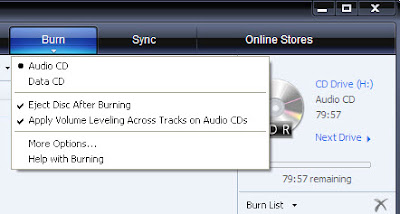
2. Set "Burn" option at Windows Media Player

Launch Windows Media Player and click the "Burn" button in the main window to enable the burning function of Windows Media Player. From the drop-down list, please tick "Audio CD" option if it is currently unchecked.

convert protected WMA to MP3 with TuneClone

3. Select the TuneClone's Virtual CD burner

Click the "Next Drive" button to select TuneClone's Virtual CD Burner.

4. Start to burn

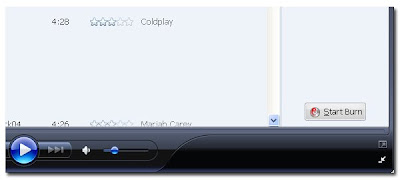
Drag your music files to the "Burn List", and click the "Start Burn" button to burn the playlist.

convert protected WMA to MP3

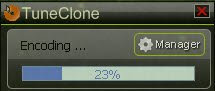
After the burning gets started, TuneClone will automatically convert the music file to MP3. You can open the manager screen to show all the converted music files.

convert protected WMA to MP3 using TuneClone

The most important step is to choose the cd burner. Then the software can convert the music files automatically. It is exceedingly easy when you want to batch convert lots of files.
Note: Under Windows Vista, Windows Media Player 11 may not able to choose the TuneClone's virtual CD burner.